


If you own a Samsung Odyssey Neo G9 57” (G95NC), you know how great it is to have a massive 57-inch curved screen on your desk, and how annoying it is to change the Picture-by-Picture layout or switch the input of a pane. This monitor has no remote, so the only way to do it is digging through the on-screen menu using the little joystick button just below the monitor: it’s slow, it’s not user friendly at all and, considering how often I switch, I’m also a bit worried that button won’t last forever. I was tired of it, so I built G95NC Controller, a small open source desktop app which lets you do all of this with a couple of clicks, on macOS, Linux and Windows.
In this article I’ll tell you what it does, how it works under the hood and how you can install it.
🖥️ What is G95NC Controller
G95NC Controller is a lightweight desktop app built with Kotlin and Compose Multiplatform designed specifically for the Samsung Odyssey 57” (G95NC). It lives in your system tray (or in the menu bar on macOS) and talks directly to the monitor over DDC/CI. With it you can:
- Switch between all the PBP/PIP layouts supported by the monitor: off/single source, 2-way PBP (50/50, large-left, 21:9 left pane, uneven…), 3-way PBP and PIP
- Choose the input source (HDMI 1, HDMI 2, HDMI 3 or DisplayPort) of every single pane
- Choose which pane the audio comes from
- Save your favourite layout + sources combinations as presets and apply them with one click, even straight from the tray menu
- Enable Safe Mode: every change automatically reverts after a countdown unless you confirm it, so you never get stuck with a black screen
- Start it at login, quietly in the tray/menu bar
- Light, dark and follow-system themes
An image is worth a thousand words, so here it is:
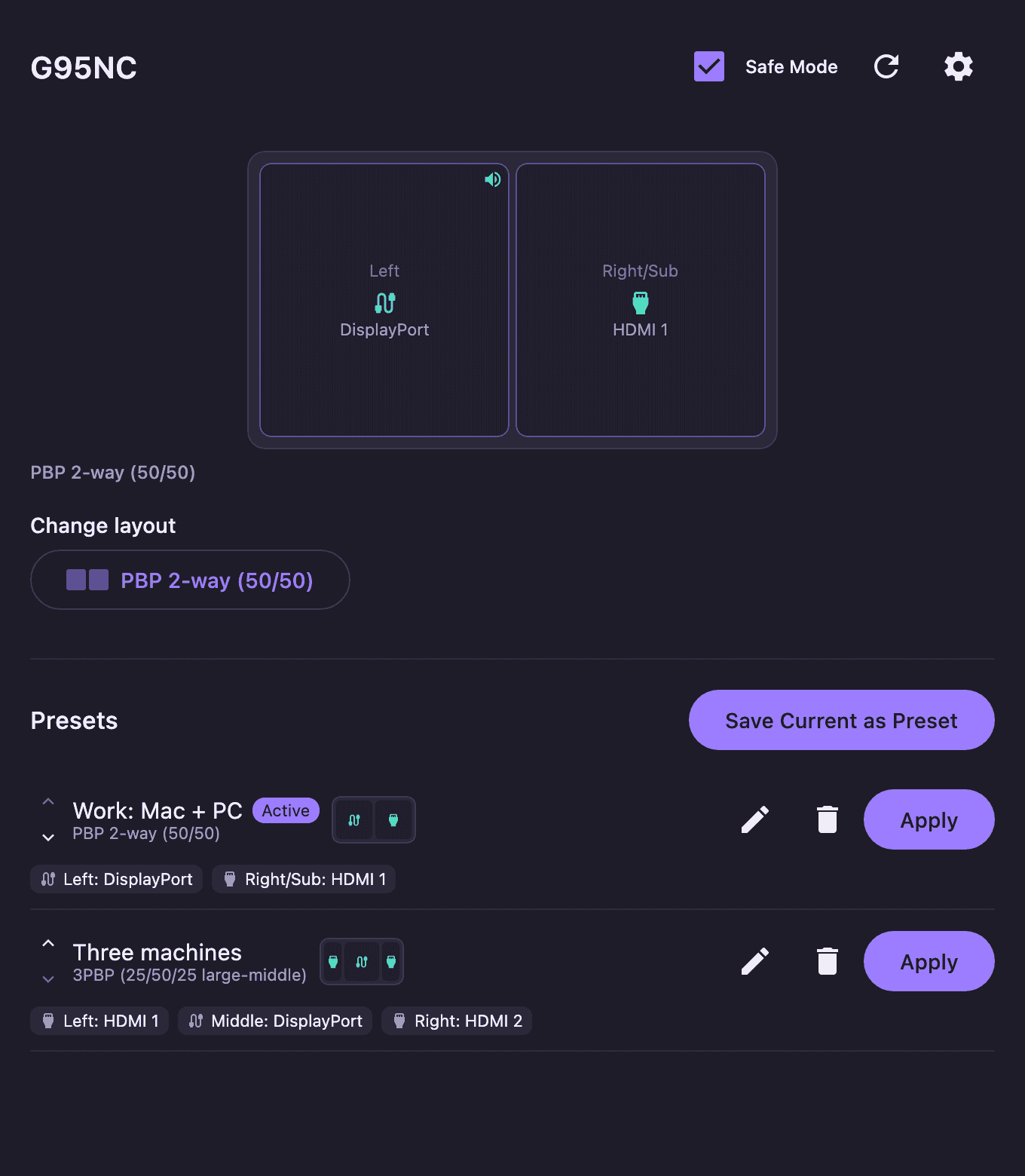
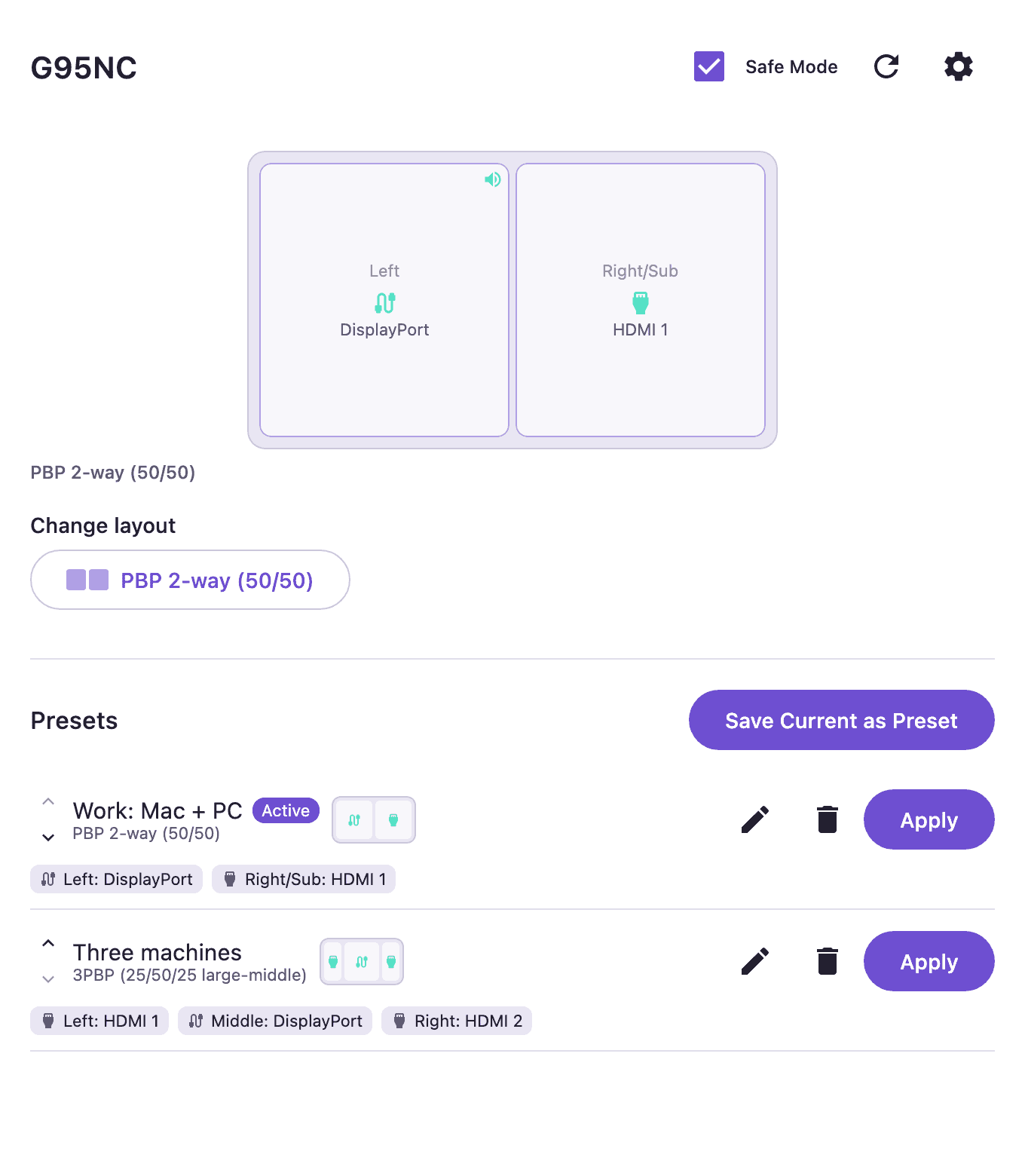
As you can see, the dashboard shows a live diagram of the current layout with the source of each pane and a speaker icon on the pane which is currently playing audio. Just tap a pane to change its source, or apply one of your presets. Personally, I use presets to jump between my work setup and my entertainment one, and switching between them is now just one click away.
🔍 How it works
Modern monitors support DDC/CI (Display Data Channel Command Interface), a protocol which lets your computer read and write monitor settings through the video cable using VCP (Virtual Control Panel) codes. Brightness, contrast and input source are standardized, but PBP layouts are not: Samsung uses its own vendor-specific codes.
Luckily, Michael Dobson already did the hard part, reverse-engineering them in his g95nc-ddc repository. The app relies on three of them:
0xE2to read and write the PBP/PIP layout0xE3to set the source of every pane0xE8to set the audio source
Since every OS exposes DDC/CI in its own way, the app defines a single MonitorController interface with a different implementation per platform:
interface MonitorController {
    suspend fun getStatus(): MonitorStatus?
    suspend fun setLayout(layout: Layout): Boolean
    suspend fun setSource(channel: PaneChannel, sourceCode: SourceCode): Boolean
    suspend fun setAudioSource(audioCode: Int): Boolean
    // ...
}
- On Windows it uses JNA to call the Win32
dxva2.dllAPI directly, no external software needed - On Linux it drives ddcutil
- On macOS it drives betterdisplaycli
The UI on top of it is plain Compose Multiplatform with Material 3, so the very same code runs everywhere.
🐛 DDC/CI is not as reliable as you might think
The most interesting (and frustrating) part of this project has been dealing with the monitor itself. DDC/CI is a slow and easily congested channel, and the G95NC has quite a few quirks: it echoes stale values for a while after a layout or source switch, it briefly drops DDC entirely while re-enumerating after a 3-way PBP change, and after hours of heavy testing I even saw the very same read command return different values on consecutive calls.
For this reason the app:
- Waits for the monitor to settle after every layout change and requires several consecutive matching reads before trusting a status
- Verifies every audio write by reading it back, retrying if needed
- Surfaces failed writes instead of silently pretending everything went fine
- Deliberately does not poll the monitor in the background, to avoid fighting with its own on-screen menu: if you change something from the monitor’s button, just hit Refresh
All the real-hardware findings and the open questions (like the 3-way PBP status decoding and six VCP codes seen on the wire but never decoded) are documented in the INVESTIGATIONS.md file of the repository, so if you like reverse-engineering, contributions are more than welcome!
📥 How to install G95NC Controller
Prebuilt installers are available on the GitHub Releases page:
| OS | File |
|---|---|
| macOS (Apple Silicon) | .dmg (arm64) |
| macOS (Intel) | .dmg (x64) |
| Windows (untested) | .msi |
| Linux (Debian/Ubuntu) | .deb |
| Linux (Fedora/openSUSE) | .rpm |
| Linux (portable, any distro) | .tar.gz |
Then make sure you have the requirements for your OS:
- Windows: nothing else to install
- Linux: install ddcutil
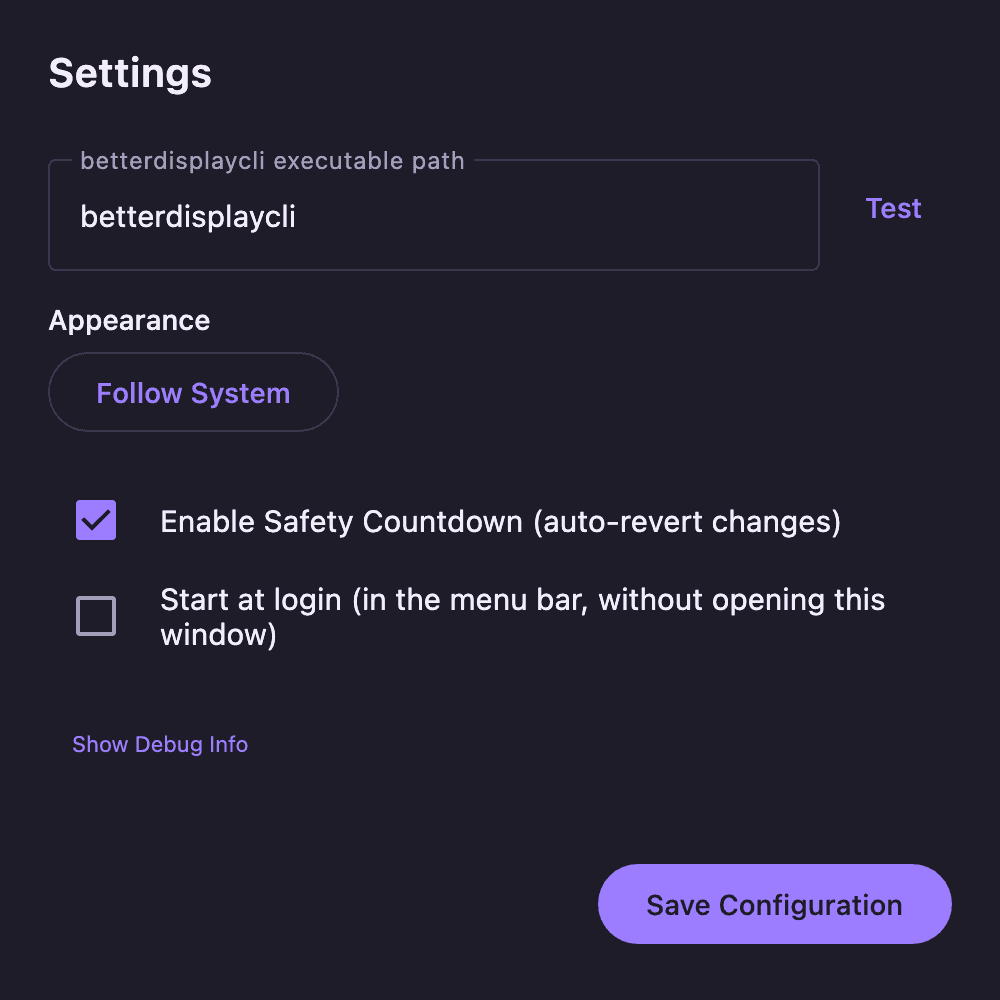
- macOS: install betterdisplaycli
If you are on an immutable distro like Bazzite, Silverblue or SteamOS, the portable archive is what you are looking for: it bundles its own Java runtime and an install.sh script which installs the app for your user only (no root needed), adds it to your start menu and optionally starts it at login:
tar -xzf G95NC-Controller-<version>-linux-x64.tar.gz
./G95NC-Controller-<version>/install.sh
The same script can later update or remove the app:
~/Apps/G95NC-Controller/install.sh --update
~/Apps/G95NC-Controller/install.sh --uninstall
💡 The builds are not code-signed. On macOS, right-click the app and choose Open the first time (or run
xattr -dr com.apple.quarantine "/Applications/G95NC Controller.app"); on Windows, SmartScreen will ask you to confirm under More info -> Run anyway.
⚠️ A few words of warning
This is a personal project and it has been largely vibe-coded with the help of Claude Code and Antigravity. It works great on my setup, but it sends raw DDC/CI commands to your monitor, so use it at your own risk and expect some rough edges (Safe Mode is there for a reason!).
Furthermore, the Windows build has never been tested on real Windows hardware: it may work, it may not. If you try it, please let me know!
✅ Conclusion
If you own a Samsung Odyssey 57” (G95NC) and you are tired of fiddling with the on-screen menu to switch PBP layouts and inputs, give G95NC Controller a try. It’s free, open source (MIT licensed) and available for macOS, Linux and Windows.
You can find the source code, report issues or contribute on the GitHub repository, and if you find it useful, leaving a ⭐ would really help other G95NC owners find it.
A big thank you to Michael Dobson for his g95nc-ddc reverse-engineering work, without it this app wouldn’t exist.
Happy ultra-wide living 🚀
Previous ArticleTest GitHub Actions workflows on a branch before merging


